


If you are using Cloudflare R2 for object storage and suddenly see a message saying “Your subscription to R2 was previously removed. In order to access your buckets, please add the R2 subscription back to your account”, followed by the “Add R2 subscription” button that just reloads the page, you are not alone. Many users have faced this exact situation, and it can be confusing and frustrating because the dashboard keeps redirecting you without making any progress.
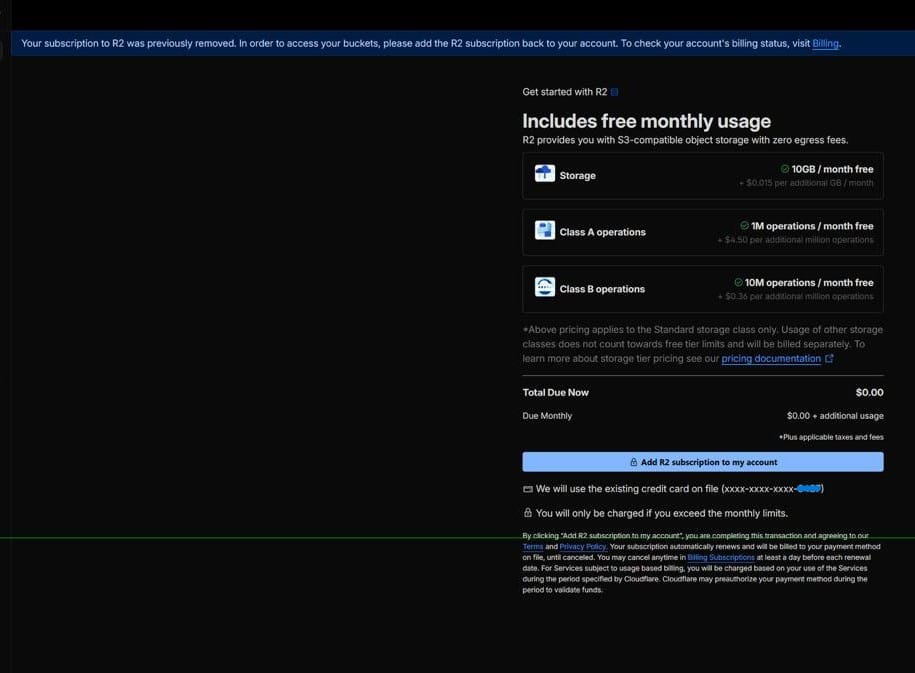
This issue is not caused by anything you did wrong. It is usually linked to how Cloudflare’s billing and product systems communicate with each other. I faced this same problem recently, and after trying every possible fix, I finally found what works. Here is a complete summary of how I resolved it and what steps you can follow.
Understanding the Issue
Cloudflare R2 is a powerful S3-compatible object storage service that offers zero egress fees and is used by developers, startups, and businesses worldwide. However, sometimes the billing system and the product subscription state become out of sync. When that happens, your account appears as if R2 was removed or canceled, even if you still have valid billing information and active payment methods.
Because of this mismatch, the dashboard cannot properly re-enable R2. Each time you click “Add R2 subscription”, it tries to re-subscribe, fails on the backend, and simply reloads the same page. In short, the front end keeps looping while the backend silently blocks the activation.
Step-by-Step Fix
1. Check Your Billing Information
Start by checking your Cloudflare Billing section carefully.
- Go to Billing → Subscriptions.
- Look for any pending cancellations or paused plans. If there is one for R2, cancel the cancellation so the subscription can continue.
- Then check Billing → Invoices to confirm there are no unpaid or duplicate invoices.

- Make sure your payment method is valid and active. Sometimes expired cards or failed transactions cause invisible blocks.
2. Try a Clean Login
Before going further, log out and back into your Cloudflare account. Try opening the R2 page in incognito mode or another browser. Occasionally, the dashboard cache can cause session issues that make the page reload endlessly.
3. Contact Cloudflare Support
If the problem still exists, you will need Cloudflare’s support team to reset your account’s R2 subscription state manually.
- Open a support ticket under Billing.
- Mention the full error message and that clicking “Add R2 subscription to my account” reloads the page.
- Attach a screenshot and your Account ID.
- Clearly request a manual reset of your R2 subscription or backend unlock.
Once the support team verifies your account, they can remove the stale state from the backend. In my case, the issue was resolved within 24 hours, and I regained access to my R2 buckets without data loss.
4. If Nothing Works: Try the Discord Solution
If billing checks and support tickets do not fix it, there is one more community-tested option. Join the Cloudflare Developers Discord server and link your account using the /link command. This connects your Discord identity with your Cloudflare account so Cloudflare staff and verified community helpers can review your account faster.
This step is not mandatory for all users, but several people have reported success after linking their account in Discord when support tickets alone did not resolve the issue. It provides another communication channel and often speeds up backend corrections.
Final Thoughts
If you are stuck in the R2 subscription loop, do not panic and do not waste time reloading the same page. This is a known backend synchronization bug that can only be fixed by verifying your billing information and having Cloudflare reset your subscription internally.
For most users, contacting Cloudflare Billing Support is enough to solve it. If you still face issues, try linking your account in the Discord community for additional help. Once the subscription state is restored, you will be able to add R2 again and access all your existing buckets without losing any data.
By sharing this experience, I hope to save you hours of confusion and frustration. Remember to keep your billing information current, double-check your invoices, and reach out to support early if you notice strange behavior in your dashboard. Sometimes the simplest fix is just getting the right people to look at the backend.


